


eSIM stuck on "Activating": what to do
Usually the eSIM is already installed and just waiting for your destination's network. Check your SIM list. If it is there, leave it, and turn it on when you land. Do not delete it.
"Activating" or "Unable to activate" often shows up even though the install worked. Here is how to check.
Step by step
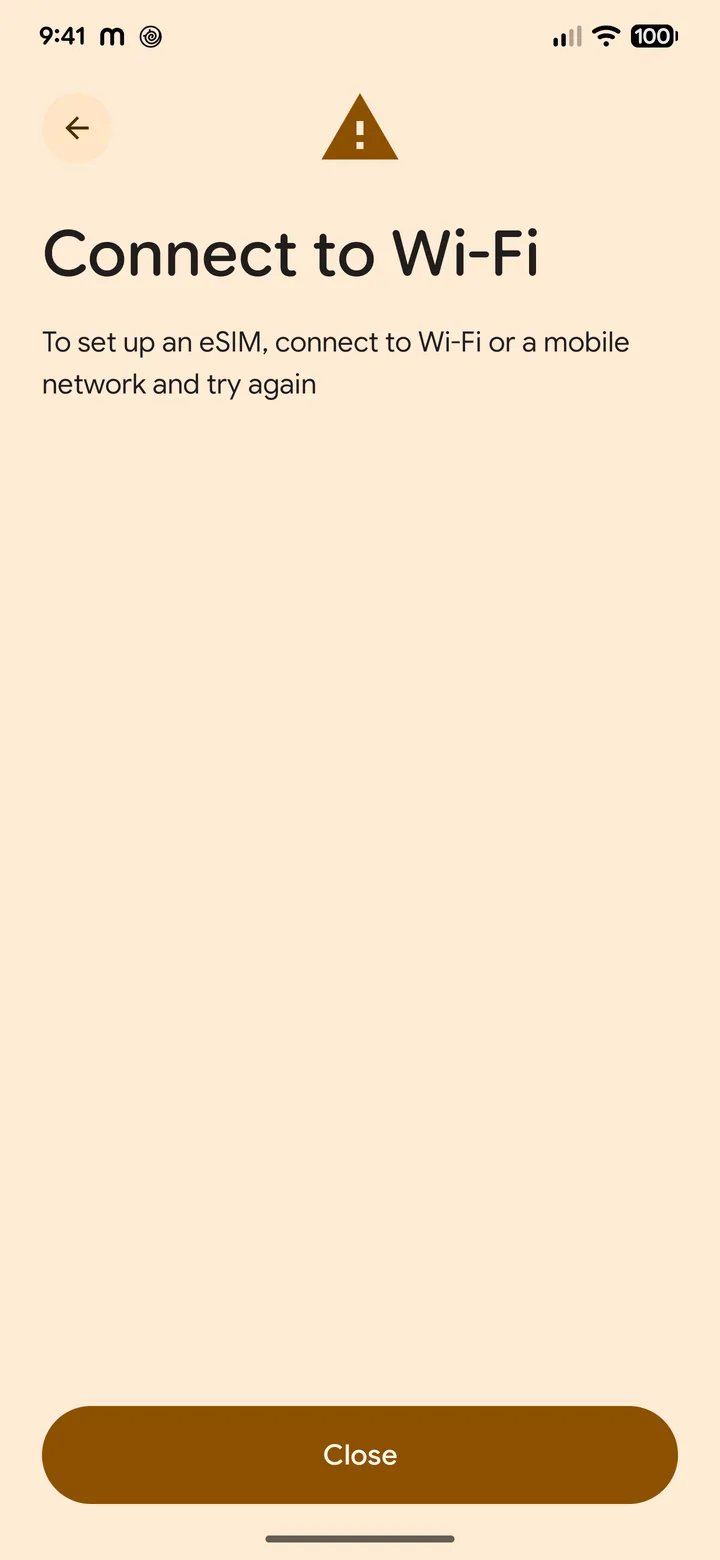 1Step 1 of 5
Make sure you are on working Wi-Fi.
The phone needs internet to finish the install.
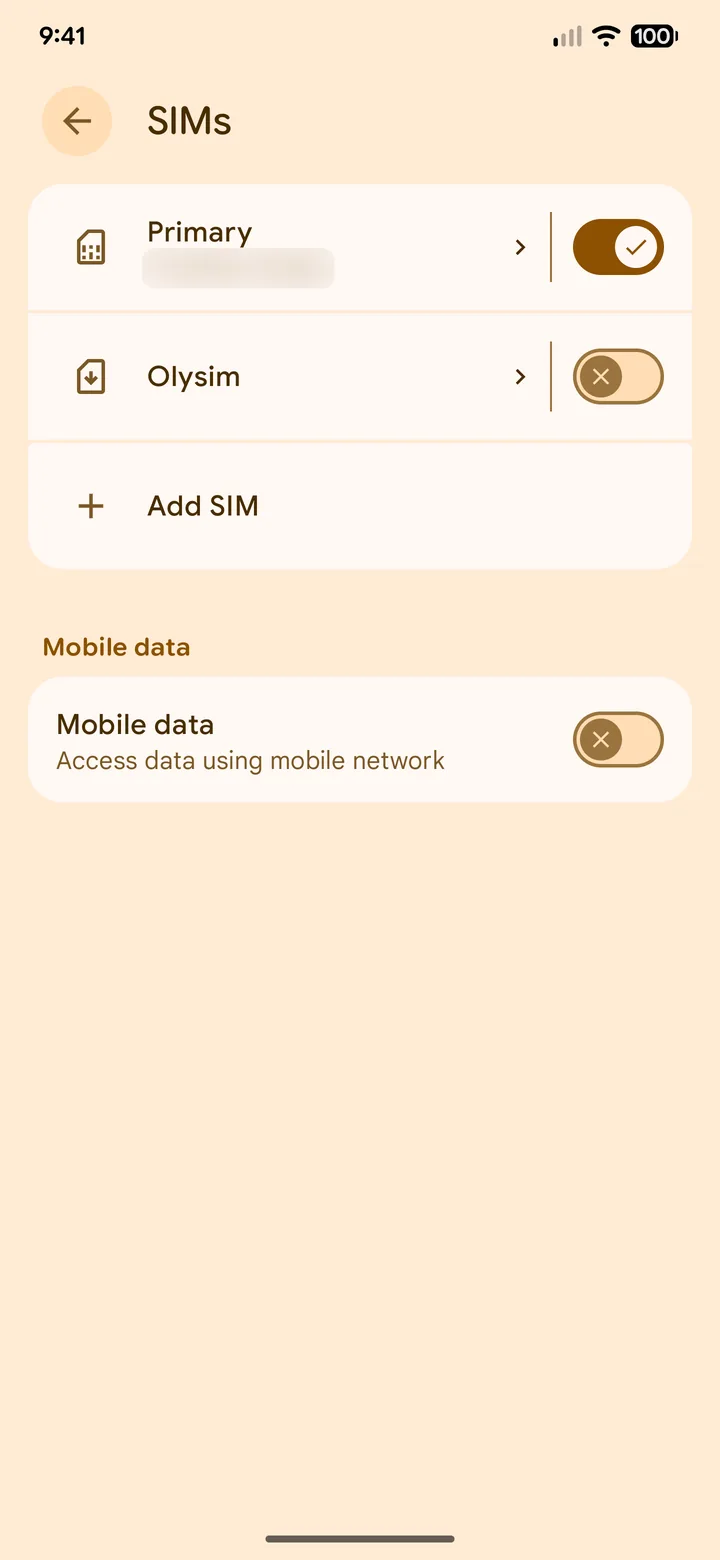 2Step 2 of 5
Open your SIM list and look for the new eSIM.
iPhone: Settings > Mobile Service. Samsung: SIM manager. Pixel: Network & internet > SIMs.
- 3Step 3 of 5
Found it? It is installed. Leave it as it is.
It finishes activating when it connects at your destination.
- 4Step 4 of 5
Not there? Restart your phone and check again.
Keep Wi-Fi on while it restarts.
- 5Step 5 of 5
Still not there? Message us on WhatsApp before you scan again.
Send a screenshot of your SIM list, so we can check it fast.
Do not delete the eSIM and do not scan the QR code again and again. That can use up the code.
Common questions
Why does it say Activating at home?
A travel eSIM connects only at your destination. At home, the phone may show Activating or No Service. That is normal.
My iPhone says Unable to Activate eSIM. Did it fail?
Often not. Check Settings > Mobile Service. If the eSIM is listed, it is installed.