


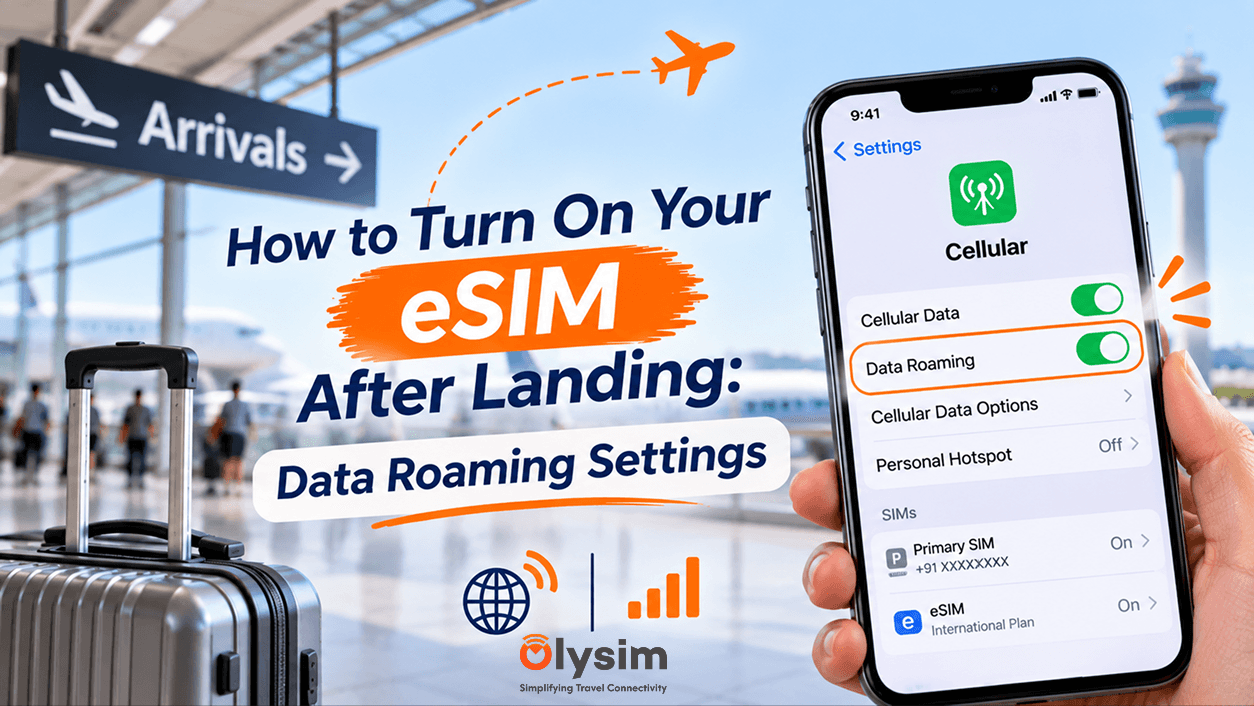
How do you turn on your eSIM after landing?
You step off the plane, take your phone off airplane mode and see no data. You installed the eSIM at home, so you expected it to work straight away. It will, once three settings are right.
Short answer
Switch the eSIM line on, choose it as your mobile data line, and turn on Data Roaming for that line. Then wait a minute for a local network name to appear at the top of your screen. Keep your home SIM's data switched off.
An eSIM is a SIM built into your phone, so you add it by scanning a QR code instead of swapping a plastic card. People often call it an eSIM card, but nothing physical arrives. This guide follows the order things happen, from the night before to the minute you walk into arrivals.
What to do, in the order it happens
The night before
Check that the eSIM is installed. Open your SIM settings and look for a second line with a label such as Travel or Data. Keep it switched off for now. The eSIM installation guide shows the install itself.
At the departure gate
Download offline maps and your boarding passes while you are on airport Wi-Fi. Charge your phone. Do not turn the eSIM on yet, because some plans start counting days from first connection.
In the air
Leave the phone in airplane mode. Nothing needs doing here.
On the aircraft, doors open
Turn airplane mode off, then follow the steps below. Do it while you wait in the jet bridge or the passport queue, so data is ready by the baggage belt.
The four steps on an iPhone
Open Settings, then Mobile Service
You will see your home line and your travel line listed under SIMs.
Tap the travel line and switch Turn On This Line
The line shows as On when it worked.
Turn on Data Roaming for that line
Data Roaming lets your phone use a local network instead of your home one. On a travel eSIM this does not add roaming charges from your home provider, because that line is separate.
Set Mobile Data to the travel line
Go back, tap Mobile Data and choose the travel line. Switch off Allow Mobile Data Switching so your phone does not slip back to the home line.
The same steps on a Samsung or Pixel phone
Menus change by brand, but the three jobs are the same. Open Settings, then Connections or Network and internet, then SIM manager. Switch the travel eSIM on, choose it under Mobile data, and turn on Data roaming for it.
If your phone offers a choice between the two lines for calls and texts, leave those on your home line. The travel line only needs to carry data. Our guide to keeping your phone number with a travel eSIM explains how that works.
The one setting people miss is Data Roaming. With it off, the line looks active but no data flows.
How to tell it worked
Look at the top of your screen. You should see a local network name and a signal indicator such as 4G, LTE or 5G within a minute or two. Open a map or load a web page on mobile data, with Wi-Fi switched off, to be sure.
At a big airport such as Frankfurt, Singapore Changi or Dubai, the network name may take a little longer to appear while the phone chooses between several. Give it two minutes before you change anything.
If there is still no data
| What you see | Likely cause | What to try |
|---|---|---|
| No network name at all | Phone has not found a signal yet | Switch airplane mode on for ten seconds, then off |
| Network name shows, pages will not load | Data Roaming is off, or wrong line chosen | Recheck steps 3 and 4 |
| Signal bars but slow | Crowded network or weak spot | Move away from the gate area, or restart the phone |
| Plan shows as expired or unavailable | Days or data ran out | Read our guide on running out of data |
Still stuck? Our guide to why an eSIM can be slow abroad covers weak signal in more detail. Check that your phone supports eSIM and is not locked, using the eSIM compatible device list.
Do
Use the travel line for mobile data and keep your home line for calls and texts if you still want them.
Do not
Leave Data Roaming on for your home line. That is the setting that can bring roaming charges from your home provider.
Why turning it on at landing beats turning it on at home
Many plans start their day count at first connection, so switching on at home can use up days before you fly. Keeping the line off until you land protects every day you paid for. Check your plan's details if you are unsure when the clock starts.
Buying after you land is harder, because you need data to buy. Our article on how long an eSIM takes after buying shows why before you fly is better. Other questions are on the FAQ page.
The short version
Install at home, keep the line off, and switch it on as the doors open. Turn on the line, pick it for mobile data and turn on Data Roaming for it. Look for a local network name, then test with a map.


