


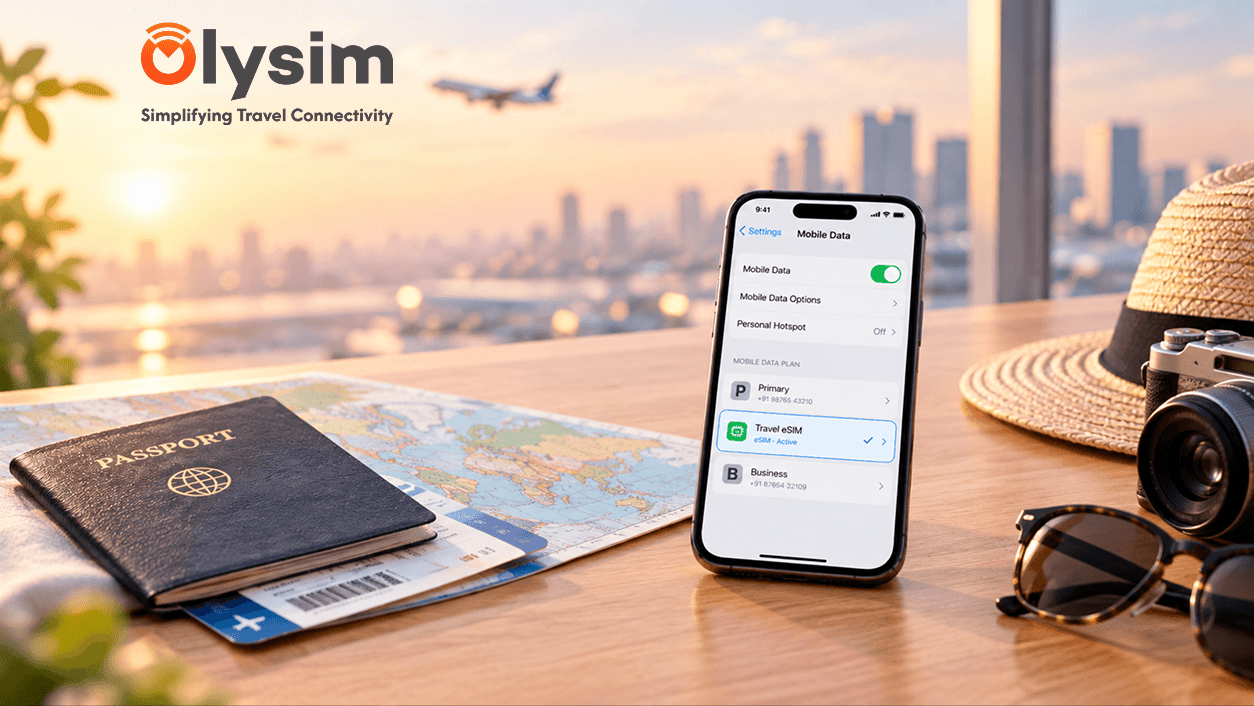
You installed your eSIM before your trip, but it is not the one your phone is actually using. Your data still runs through your home SIM, which means roaming charges instead of the local rates you paid for. This is one of the most common eSIM mistakes, and it takes less than a minute to fix.
Quick answer: go to your phone's mobile or cellular settings, select the eSIM you want to use, and set it as the line for data while keeping your home SIM off for data. On an iPhone this is under Settings, Cellular. On Android it is usually under Settings, Connections, SIM Manager.
Why installing an eSIM is not the same as using it
An eSIM is a SIM built into your phone, so there is no small plastic card to insert. Because of this, installing one does not automatically remove your home SIM or switch your phone over to it for data.
Most phones can hold your home SIM and a travel eSIM at the same time, a setup called dual SIM mode. Your phone still needs to be told which one to actually use for data, calls and texts, and by default it often keeps using whichever SIM it used before you installed the new one.
How to set your eSIM as the default for data on an iPhone
This takes about a minute on any recent iPhone:
- Open Settings, then tap Cellular or Mobile Data.
- Tap Cellular Data, and choose your travel eSIM from the list.
- Go back and tap on your home SIM's line.
- Turn off Data Roaming for your home SIM specifically, so it never uses data by accident.
Your home SIM can stay switched on for calls and texts if you want to keep receiving them, while your eSIM handles all the actual data use.
How to set your eSIM as the default for data on Android
Steps vary slightly by phone brand, but the general path is the same on Samsung, Google Pixel and most other Android phones:
- Open Settings, then tap Connections or Network and Internet.
- Tap SIM Manager or SIMs, depending on your phone.
- Under Mobile Data, select your travel eSIM.
- Turn off Data Roaming on your home SIM's settings specifically.
If your exact phone's menu looks different, the eSIM compatible device list covers naming differences across common models.
iPhone vs Android: where the setting lives
| Step | iPhone | Android |
|---|---|---|
| Where to start | Settings, Cellular | Settings, Connections or Network and Internet |
| Where to pick the data line | Cellular Data | SIM Manager or SIMs |
| Where to stop home SIM roaming | Tap the home SIM's line, toggle off Data Roaming | Under the home SIM's own settings, toggle off Data Roaming |
How to check it actually worked
Turn on airplane mode for ten seconds, then turn it off again, so your phone reconnects fresh. Open a map or browser app and see that it loads normally.
If pages are not loading or feel very slow, your eSIM may not be fully active yet, which is covered in our guide on why an eSIM keeps disconnecting while travelling.
What happens if you skip this step
If your home SIM stays set for data with roaming switched on, your phone may keep using it instead of your eSIM, running up roaming charges even though you paid for a travel plan. This is one of the most common and most expensive eSIM mistakes travellers make.
Checking this setting takes under a minute and is worth doing the moment you land, before you start browsing, mapping or messaging.
Getting your eSIM set as the default data line is the last step between installing your plan and actually using it. If you have not installed yours yet, our eSIM installation guide covers that first step, and you can browse eSIM plans by destination on Olysim's plans page.


