


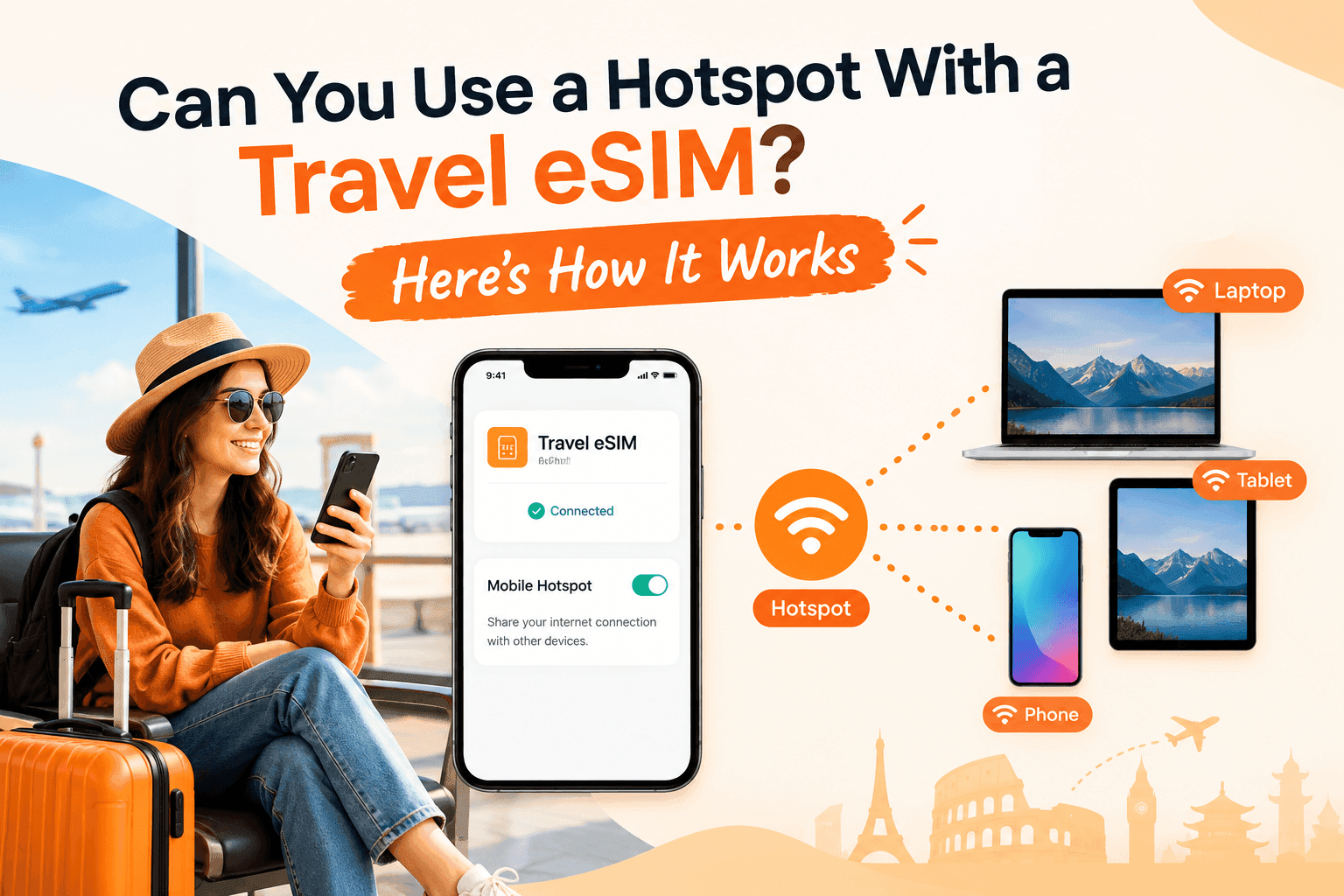
Can you use your phone hotspot with a travel eSIM?
You land in a new country, your laptop needs the internet, and the airport Wi-Fi keeps dropping. Your phone has data from a travel eSIM, so you wonder if you can share it. Here is the short answer.
Yes, in most cases you can. A hotspot lets your phone share its data with other devices. Most travel eSIM plans allow this, but a few do not. Always check the plan details before you buy.
An eSIM is a SIM built into your phone, so there is no small plastic card to swap. It gives your phone mobile data in another country. Your phone can then pass that data on to a laptop, a tablet or a friend’s phone.
What is a phone hotspot, in plain words?
A hotspot turns your phone into a small Wi-Fi router. Other devices join it just like they would join a café Wi-Fi network. They use your phone’s mobile data to get online.
You may also see the word "tethering". It means the same thing: sharing your phone’s data with another device. Phones often call it "Personal Hotspot" or "Mobile Hotspot".
This is useful in real situations. You might need to send a file from a laptop at Heathrow before boarding. You might be working from a rental flat in Lisbon where the Wi-Fi is broken. Or your partner’s phone might have no data at all.
How to turn on your hotspot abroad
First, make sure your travel eSIM is installed and working. If you have not done this yet, follow our eSIM installation guide before you fly. Then check that your phone is using the eSIM for mobile data. Our guide on setting an eSIM as your default data line shows how.
On an iPhone
- Open Settings.
- Tap Personal Hotspot.
- Switch on "Allow Others to Join".
- Note the Wi-Fi password shown on the screen.
- On your laptop, pick your iPhone from the Wi-Fi list and type the password.
On an Android phone
- Open Settings.
- Tap Network & internet, or Connections on some Samsung phones.
- Tap Hotspot & tethering, or Mobile Hotspot and Tethering.
- Switch on Wi-Fi hotspot.
- Join it from your laptop using the name and password shown.
Menu names change between phone brands. If you cannot find the option, type "hotspot" into the search box at the top of Settings.
Make sure you are not using your home SIM by mistake
This step protects your wallet. Many people keep their home SIM active while they travel. If your hotspot runs on that line, your home carrier may charge roaming fees. Roaming means using your normal SIM in another country.
Before you share data, open your mobile data settings. Pick the travel eSIM as the line for data. Then turn on data roaming for that eSIM line only. Turn data roaming off for your home line.
How much data does a hotspot use?
A laptop uses data faster than a phone. It downloads updates, syncs files and loads heavy web pages in the background. The table below shows rough numbers. Real use varies by app and video quality.
| What you do | Rough data per hour | Good to know |
|---|---|---|
| Email and web pages | 50 to 150 MB | Light use, easy on your plan |
| Video calls on Zoom or Google Meet | 500 MB to 1.5 GB | Turn off your camera to use less |
| Watching HD video | 1 to 3 GB | Lower the video quality to save data |
| Laptop software update | 500 MB to several GB | Wait for hotel Wi-Fi if you can |
A day of light work can fit in a small plan. Daily video calls and streaming need a much bigger one. You can see all options on our eSIM plans page. You can also learn how to check how much data is left on your eSIM at any time.
How to save data while sharing your hotspot
- Turn off automatic updates on your laptop before you connect.
- Pause cloud backups such as iCloud, Google Drive or Dropbox.
- Set your laptop’s Wi-Fi to "metered connection" on Windows, or turn on Low Data Mode on a Mac. This tells it to hold back big downloads.
- Download maps, shows and files while you are on free Wi-Fi at your hotel.
- Switch the hotspot off when you finish. It is easy to forget.
Why your hotspot may not work
If your laptop joins the hotspot but pages will not load, the cause is usually simple. Try these checks in order.
- Open a web page on your phone. If it does not load, the eSIM itself has a problem, not the hotspot.
- Check that data roaming is on for the eSIM line.
- Confirm the eSIM is set as your data line.
- Switch the hotspot off and on again.
- Restart your phone, then try again.
- Read your plan details to see if hotspot sharing is allowed.
If the signal keeps dropping, read why your eSIM keeps disconnecting while travelling. Weak signal in a basement café or a train tunnel is common, and it affects hotspots too.
Check before you buy
Do two quick checks before you fly. First, make sure your phone works with eSIM. Our eSIM compatible device list covers most modern iPhone, Samsung and Google Pixel models. Second, read the plan details for any note about hotspot sharing.
If you are unsure, look at the Olysim FAQ page or ask support before you pay. It takes a minute and avoids a surprise at the airport.
The simple takeaway
Yes, you can usually share a travel eSIM through your phone’s hotspot. Make sure the eSIM is your data line, keep an eye on how much data your laptop uses, and switch the hotspot off when you are done. When you are ready to pick a plan, browse the Olysim eSIM plans for your destination.


