


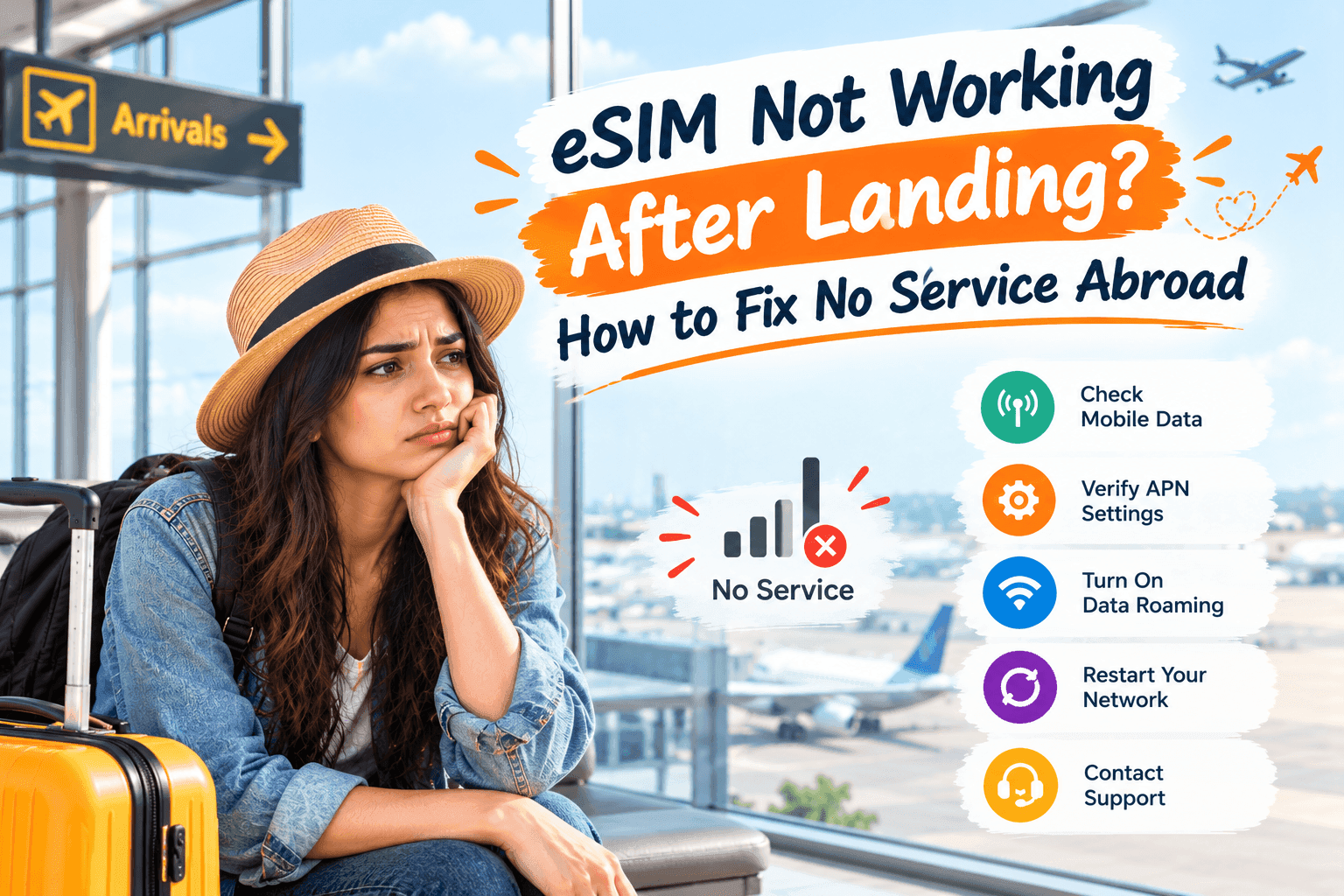
You step off the plane, switch off airplane mode and wait. The top of your screen says "No Service", or it shows bars but nothing will load. Your map will not open and your ride app will not find you.
Almost every case like this comes down to one of six settings or habits, and most take under a minute to fix. This guide goes through them in the order they usually happen, commonest first.
Short answer
Check three things first: the eSIM line is turned on, Data Roaming is on for that line, and your phone is using that line for mobile data. If that does not work, restart the phone and pick the network by hand.
First, tell which problem you have
"No service" can mean two different things, and the fix depends on which one you see.
- No bars and no network name. Your phone cannot find a mobile network at all.
- Bars and a network name, but no data. The phone is connected to a network but cannot get online through it.
Look at the status bar at the top of the screen. Then work down the list below. Causes 1 to 3 fix most of the "bars but no data" cases. Causes 4 to 6 are for "no signal".
Why your eSIM has no service after landing, and how to fix it
1. The eSIM line is switched off
An eSIM - a SIM built into your phone, so there is no plastic card to swap - is installed as a second line. Phones often leave it switched off after install, and people forget to turn it on once they land.
Check: Open your phone's mobile or SIM settings. You should see your home line and the travel eSIM listed. Fix: Make sure the travel line is switched on. If you have not installed it yet, our eSIM installation guide shows each step.
2. Data Roaming is off for the eSIM line
A travel eSIM connects to local networks in the country you are visiting, which your phone treats as roaming. If Data Roaming is off on that line, you get bars and no internet. This is the single most common cause.
Check: Open the settings for the eSIM line, not the home line. Fix: Turn Data Roaming on for that line only. Leave it off on your home line, so your home carrier cannot charge you for roaming data.
The setting must be on for the travel eSIM line and off for your home line. People often turn it on for the wrong one.
3. Your phone is using the wrong line for data
With two lines installed, your phone picks one for mobile data. If it still points at your home SIM, your travel eSIM does nothing, and you risk roaming charges from your home carrier.
Check: Look for a setting called Mobile Data or Cellular Data and see which line is chosen. Fix: Select the travel eSIM. Also turn off any option that lets the phone switch data between lines on its own.
4. The phone has not picked a network yet
After a long flight, your phone can get stuck. It may still be trying to find the network it used before airplane mode, or it may have joined a weak one.
Fix: Turn airplane mode on, wait about 15 seconds, then turn it off. If that fails, restart the phone. A restart clears more small faults than anything else on this list, and it takes about a minute.
5. Automatic network selection chose a poor network
Your eSIM works with several local networks in each country. Your phone normally picks one by itself. Sometimes it picks one with weak signal in the place you are standing, such as inside a terminal building.
Fix: In the eSIM line's settings, look for Network Selection and turn off Automatic. Your phone will list the networks it can see. Pick one, wait a minute, and check for data. If it is no better, try another from the list.
6. The eSIM was never installed properly
An eSIM needs an internet connection to install. If you tried to do it at the airport on a weak wifi network, the install may have stopped halfway. The line then looks present in settings but has no network.
Check: Look at the eSIM line for a status like "No Service" even though the phone has been restarted. Fix: Connect to reliable wifi, such as your hotel's, and follow the install steps again using your original QR code or setup details. Do not delete the eSIM first unless support tells you to, since many eSIMs can only be installed once.
Two quick checks people skip
Before you contact anyone
✓ Confirm the plan covers the country you are standing in. A plan bought for one country will not work in the next one.
✓ Confirm the plan has not run out of days or data. Your plan page or email shows what is left.
✓ Confirm your phone works with eSIM. Check the eSIM compatible device list if you are unsure.
✓ Check whether your phone is locked to your home carrier. A locked phone can refuse a second carrier's eSIM.
Many plans start counting days from the first time you connect to a network abroad. Others start from a date you picked when you bought. If your plan seems to have ended early, check which kind you have.
What to do in the airport while you sort it out
Use the airport wifi to get online while you fix the problem. Most large airports, including Heathrow, Frankfurt and Changi, offer free wifi, though some ask for a quick sign-up first. That is enough to reach your plan page, send a message home and open your ride app.
One small habit saves trouble. Install your eSIM at home, on home wifi, before you leave. Then your first minute abroad is just a matter of turning on the right line. Our post on buying an eSIM after you land versus before you fly explains why.
When nothing here worked
If you have gone through all six causes and still have no service, the problem is probably with the plan or the install, not your settings. Contact support and have these ready:
- Your order number or the email address you bought with.
- The country and city where you are right now.
- Your phone model.
- What the status bar shows: no bars, or bars with no data.
Our frequently asked questions page covers the most common cases, and support can see what your plan is doing from their side. Do this over wifi, not mobile data, so you can reach them while the eSIM is still down.
The short version
Most no-service problems after landing are settings, not faults. Turn the eSIM line on, turn Data Roaming on for that line, and make sure mobile data points at it. Then restart, and try a different network by hand if you are still stuck.
If you are planning a trip and want to avoid this, set the eSIM up at home and check each setting once before you board. You can compare options for your destination on our plans page.


