


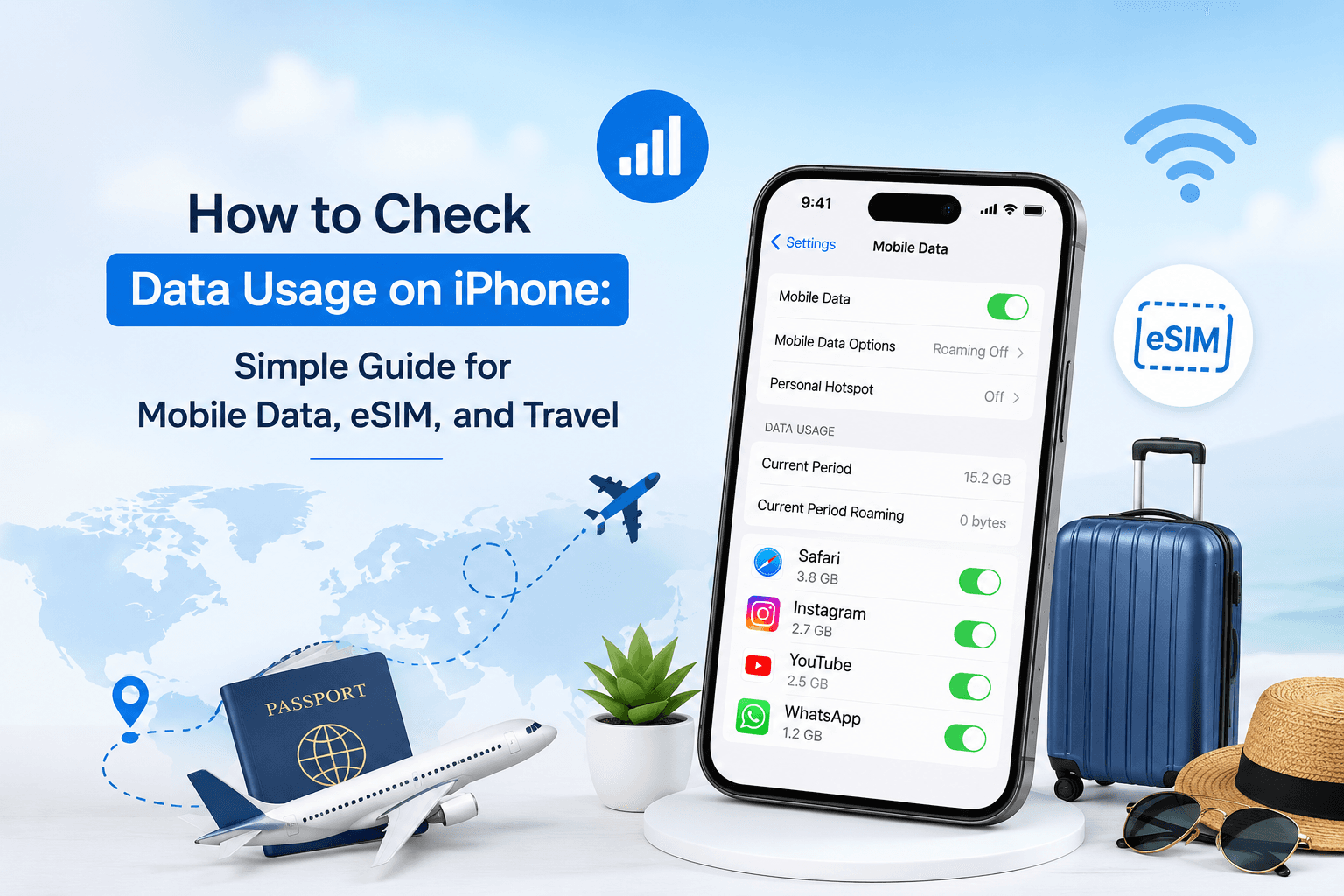
Running out of mobile data on an iPhone can be annoying, especially when you are travelling, using maps, booking cabs, streaming videos, or depending on WhatsApp calls. The good news is that your iPhone already has a built-in way to check how much mobile data you have used.
In India, this setting may appear as Mobile Service, Mobile Data, or sometimes Cellular, depending on your iOS version, region, and language settings. This guide explains the steps in a simple way, including how to check app-wise data usage, reset usage, track eSIM data, and avoid surprise roaming charges.
If you travel internationally, this is also where an eSIM like Olysim becomes useful. You can use a separate travel data plan, keep your Indian SIM active for calls or OTPs, and track your travel data directly from your iPhone.
Quick Answer: How to Check Data Usage on iPhone
Open Settings > Mobile Service or Settings > Mobile Data. Scroll down to see your total data usage under Current Period. Below that, you will see how much data each app has used.
If your iPhone shows Cellular instead of Mobile Service, go to Settings > Cellular and follow the same steps.
What “Current Period” Means on iPhone
This is one of the most misunderstood parts of iPhone data usage.
On iPhone, Current Period usually means the data used since the last time you manually reset the statistics. It does not always match your Jio, Airtel, Vi, BSNL, or eSIM plan cycle.
So if your iPhone says you used 42GB, it may not mean you used 42GB this month. It may mean you have used 42GB since the last reset.
To check this properly, scroll to the bottom of the Mobile Data page and look for Last Reset. If it was reset months ago, your usage number will naturally look high.
How to Check Total Mobile Data Usage on iPhone
Follow these steps:
- Open the Settings app.
- Tap Mobile Service or Mobile Data.
- Scroll down to the Mobile Data section.
- Look for the current period.
- This shows the total mobile data used since the last reset.
If you are using an iPhone bought outside India, or your region is set differently, the same option may appear as Cellular.
How to Check Which Apps Are Using the Most Data
On the same Mobile Data screen, scroll down, and you will see a list of apps such as WhatsApp, Instagram, YouTube, Safari, Maps, Netflix, App Store, and more.
Next to each app, the iPhone shows how much mobile data that app has used. This is helpful because most people do not realise which app is eating their data.
Common high-data apps include:
- Instagram, YouTube, Netflix, and other video apps
- WhatsApp media downloads and backups
- Google Maps or Apple Maps during travel
- App Store automatic downloads
- iCloud Photos syncing
- Personal Hotspot usage
- System Services
If you do not want an app to use mobile data, simply turn off the switch next to that app. The app will still work on Wi-Fi.
How to Check iPhone System Services Data Usage
Sometimes your data disappears even when you are not using many apps. In that case, check System Services.
Go to Settings > Mobile Service/Mobile Data > System Services.
Here, you may see data used by services like push notifications, iCloud, software updates, Siri, DNS services, location services, and more. You cannot turn off mobile data for every individual system service, but this section helps you understand where the usage is coming from.
How to Reset Data Usage on iPhone
If you want accurate monthly tracking, reset your data statistics at the start of your plan cycle.
Steps:
- Go to Settings.
- Tap Mobile Service or Mobile Data.
- Scroll to the bottom.
- Tap Reset Statistics.
- Confirm the reset.
A smart habit is to reset it on the same day your plan renews. For Indian prepaid users, this could be the day your 28-day, 56-day, or 84-day pack starts. For travellers, reset it just before activating your travel eSIM.
How to Check Data Usage on iPhone with Dual SIM or eSIM
If you use Dual SIM, the iPhone can show mobile data usage for the selected data line.
Go to Settings > Mobile Service/Mobile Data > Mobile Data and check which SIM or eSIM is selected for the internet.
You can label your plans too.
For example:
- Primary
- Business
- Travel
- Olysim
This makes it easier to know which SIM is using data.
How to Check Olysim eSIM Data Usage on iPhone
If you are using an Olysim eSIM while travelling, you can track usage from your iPhone just like any other mobile plan.
Before your trip, install the Olysim eSIM using the QR code or manual details.
Then:
- Go to Settings > Mobile Service.
- Select your Olysim eSIM line.
- Make sure the line is turned on.
- Set Mobile Data to Olysim when you want to use travel data.
- Turn on Data Roaming for the Olysim line if required.
- Reset statistics before your trip starts.
- Check the current period daily to monitor usage.
This is useful because Olysim offers travel eSIM plans for 150+ countries, so you can avoid depending only on airport SIM counters, public Wi-Fi, or expensive international roaming. You can keep your Indian SIM active for calls or messages and use Olysim mainly for travel internet.
Important Travel Tip for Indian iPhone Users
When travelling abroad, check two things carefully:
First, set your travel eSIM, such as Olysim, as the Mobile Data line.
Second, keep data roaming off for your Indian SIM unless you intentionally want to use your Indian operator’s roaming data pack.
Also, check Allow Mobile Data Switching. If this is on, your iPhone may switch between SIMs depending on coverage. While this can be useful, travellers who want to control costs should keep it off unless they understand how both plans will be charged.
How to Reduce Mobile Data Usage on iPhone
If your data is finishing too quickly, try these settings.
Turn on Low Data Mode:
Go to Settings > Mobile Data > Mobile Data Options > Low Data Mode.
Turn off data for heavy apps:
Disable mobile data for apps like YouTube, Instagram, Netflix, or the App Store when you do not need them.
Disable Wi-Fi Assist:
Go to Settings > Mobile Data, scroll down, and turn off Wi-Fi Assist. This stops your iPhone from automatically using mobile data when Wi-Fi is weak.
Stop automatic downloads:
Go to Settings > App Store and turn off automatic downloads on mobile data.
Control WhatsApp media:
In WhatsApp, change media auto-download settings so photos and videos do not download automatically on mobile data.
Use offline maps:
Download maps on Wi-Fi before travelling.
Why iPhone Data Usage and Carrier Data Usage May Not Match
Your iPhone shows data measured by the device. Your carrier app shows data measured by the network provider.
For billing, recharge balance, daily quota, roaming limits, and fair usage policy, your carrier or eSIM provider’s app is usually the final source. Apple also recommends contacting your network provider for the most accurate current-period data usage.
So use iPhone settings to understand app-wise usage, and use your carrier or eSIM app to confirm plan balance.
Common Problems and Fixes
I cannot find Mobile Data settings.
Open Settings and search for “Mobile Data” or “Cellular”.
My iPhone shows very high data usage.
Check the Last Reset date. You may be looking at months of usage.
Data is used even on Wi-Fi.
Wi-Fi Assist may switch to mobile data when Wi-Fi is weak.
My eSIM is installed, but data is not working.
Check that the eSIM line is turned on, Mobile Data is set to that eSIM, and Data Roaming is enabled if your eSIM provider requires it.
My Indian SIM is using data abroad.
Turn off Data Roaming for your Indian SIM and select your travel eSIM as the Mobile Data line.
Final Thoughts
Checking data usage on an iPhone is simple once you know where to look. Go to Settings > Mobile Service/Mobile Data, check Current Period, review app-wise usage, and reset statistics at the start of every plan cycle.
For everyday use in India, this helps you understand which apps consume the most data. For international travel, it becomes even more important. A travel eSIM like Olysim gives you a separate data plan for your destination, and your iPhone lets you track that usage clearly from settings.
That way, you stay connected without guessing where your data went.


